Showing posts with label ubuntu. Show all posts

Sunday, October 21, 2012

Using old BanglaLion Wimax modem on Ubuntu

[UPDATE: The latest BanglaLion Wimax modems which are being sold by the Wimax company right now claim to have native support for Windows, Mac and Linux. However, many people still have the old devices and those devices don't work natively with Linux - although they sometimes seem to work natively with Mac. So here it is.]

There are quite a few posts on this around the internet. But I have had a hard time following through the instructions given there. Either because they are not sequenced properly, or because the screenshots do not match, or because links are broken, or because photo captions don't say much about the photo, or because the language is really fragmented. There is one really nice post by Md. Minhazul Haque regarding this, but it is in Bangla. If anyone prefers it in English, here is your dime. So I am re-creating a post which is already available out there, but hopefully in a more structured way.

Pre-Requisites before starting out the processes

You don't need to have pre-reqs 1 & 2 if your modem is not the ZTE AX226 model (see the label on your modem to find out which model it is)
  1. a Windows operating system
    --- needed before trying to make the modem work with linux
  2. Beceem Control Panel - download
    --- runs on windows to configure the modem hardware so that it can be detected by linux
  3. a linux operating system
    --- I used ubuntu 12.04 - 32 bit
  4. modem setup file for linux
    --- download for ZTE AX226 models and WU216 models
    --- download for Acton U211 models
  5. a banglalion wimax modem
    --- I used ZTE AX226 Device

Now going step by step with the procedure:

You don't need to follow through steps 1-7 if your modem is not the ZTE AX226 model
  1. Boot up in Windows OS without having the BanglaLion modem inserted into the USB
  2. Download and install the Beceem Control Panel. Then run the Beceem Control Panel without inserting the modem.
  3. After you start the beceem control panel software, choose USB as the interface parameter.
  4. Then insert the modem... I used a ZTE AX226 model. 
  5. You should then see a Device detected notice in the control panel. If not, then click the 'Connect Device' button
  6. Now go to the DSD tab. Then from the left panel, select "Edit tools" and then select "Modify USB Autoinit data"
  7. NOW THIS IS THE SENSITIVE PART... be very careful as you might corrupt the device if not done correctly:
    1. Click on "Read from Device"... Your device info should be loaded on the screen
    2. Your current info should show Vendor ID = 19D2 and Product ID = 0172.
      These are the values needed to make the modem work on windows or on Mac. To make this modem workable with linux, we need to change these IDs. Be very careful while doing this as it may corrupt your modem if not done correctly.
    3. Insert the following into the text fields: Vendor ID = 198F and Product ID = 0220
    4. Then click on "Write to Device"
    5. Wait for a while until the writing is complete.
    6. Close the software.
    7. Unplug the device - your modem is now ready to be recognized by ubuntu
    8. REMEMBER THAT: you will have to reset the Vendor ID and Product ID back to the default values to make it work on Windows again. But be very careful while doing it as it may corrupt your modem if not done correctly.
  8. Boot up in linux while the modem is disconnected from your machine... I used Ubuntu 12.04 without having the BanglaLion modem inserted into the USB.
  9. Download the modem setup files for linux. Choose the appropriate download file based on the model of the device that you are using.
  10. Make sure you download the file into the Home folder (or in desktop) of your Ubuntu OS. Sometimes, the partition permissions can cause trouble with the installation if you install from some other partition.
  11. Right click on the downloaded file and click properties.
  12. Make sure the "Allow executing" / "Is executable" checkbox is turned on.
  13. Then close the properties box.
  14. Make sure your modem is NOT connected to your PC yet.
  15. Now double-click the installer file and click on "Run" if prompted. You should see some terminal code executing and returning a success response. 
  16. After that, open your ubuntu dash and search for "Wimax CM GUI". You should see an app launcher icon. Open the app.
  17. You should notice it that the app shows there is no connected device. 
  18. Now connect your BanglaLion Wimax modem and the status should now show that a device has been detected.
  19. Then go over to the "Account" tab and press the "Find it" button to fill in your modem's MAC address automatically.
  20. Insert the username and password that you received from your banglalionwimax provider. 
  21. Save that profile for future use.
  22. Click activate to activate the profile into the app.
  23. Then go over to the "Status" tab and click on "Connect"... wait for some time.
  24. Your BanglaLion connection should now be established and recognized as a Wired Connection by Ubuntu.
DONE!


Beceem Control Panel on Windows:
Select USB and Connect Device

Beceem Control Panel on Windows:
Go to DSD tab and then select "Edit Tools" from the left Panel.
Then click "Modify USB Autoinit Data"

Beceem Control Panel on Windows:
VERY SENSITIVE STEP - BE VERY CAREFUL
First "Read from Device", then insert the desired IDs, then "Write to Device"
For Windows/Mac: Vendor ID = 19D2 and Product ID = 0172
For Linux: Vendor ID = 198F and Product ID = 0220

Right-Click Wimax installer on Ubuntu and go to Properties > Permissions tab
Make sure "allow executing file as program" is turned on

Double-Click Wimax installer on Ubuntu
Click Run

Wimax CM GUI on ubuntu:
Connect the device into your computer's USB port.
Go to "Account" tab and click "Find It" button to fill in your modem's MAC address.
Fill in the username password information that you received for YOUR BanglaLion connection.
Click "Save". Then click "Activate".

Wimax CM GUI on Ubuntu:
Go to status tab, Click Connect.

Citing my original sources here:

Thursday, October 13, 2011

Tweaks & Apps to pump up your Ubuntu

Some nice little tweaks and apps for your ubuntu. For some of the apps you might have to add the PPA via the apt lines into your ubuntu repository before you can download & install them. For others, you can just use apt-get install to get going :)

Clipgrab - an app to download videos with original (or your desired) encoding from popular video sharing sites like youtube, vimeo, dailymotion etc. 
- Launchpad
- Review
Enter the following in terminal:
sudo add-apt-repository ppa:clipgrab-team/ppa
sudo apt-get update
sudo apt-get install clipgrab


SysPeek - a system monitor indicator that displays CPU usage, memory usage, swap usage, disk usage and network traffic.
- Launchpad
- Review
Enter the following in terminal:
sudo add-apt-repository ppa:vicox/syspeek 
sudo apt-get update
sudo apt-get install syspeek
Seems to be discontinued since Precise

"This PPA currently publishes packages for Oneiric and Natty" - [source]

Zeitgeist Activity-Log-Manager - (now included in Ubuntu 12.04) - If you want certain files or filetypes from a certain location or application not to appear in Ubuntu dash history, then go with this.
- Launchpad
- Review
Enter the following in terminal:
sudo add-apt-repository ppa:zeitgeist/ppa
sudo apt-get update && sudo apt-get upgrade
zeitgeist-daemon --replace
sudo apt-get install zeitgeist activity-log-manager

Ejecter - an app indicator that gives you nice little EJECT button whenever there is an external mountable device attached to your ubuntu machine (mainly via USB)
- Launchpad
- Review
Enter the following in terminal:
sudo add-apt-repository ppa:fredp/ppa
sudo apt-get update
# now included in apt-get since 12.04

sudo apt-get install ejecter


Shutter - one of the best screenshot tool for Ubuntu. Grab a region, section, window, popup, context menu or the entire screen as you choose. And then annotate, blur, add markers, objects, paint & draw on it as you like.
- Launchpad
- Review
Enter the following in terminal:
sudo add-apt-repository ppa:shutter/ppa
sudo apt-get update
sudo apt-get install shutter


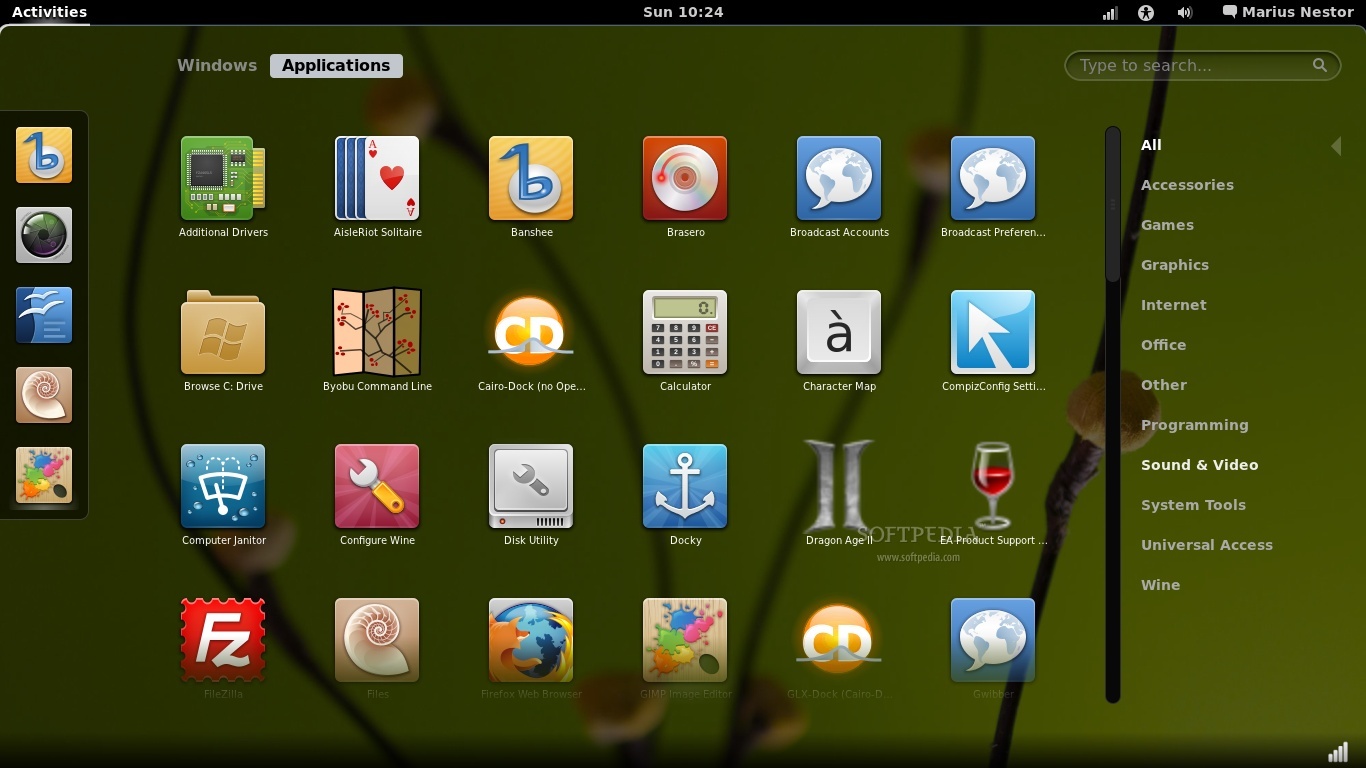
Gnome-Shell - an alternative to the Unity desktop environment which most of us are familiar with since Ubuntu 11.04. Gnome-shell is made from the new Gnome3 which is based on GTK3.0. Gnome3 has been rebuilt ground-up from scratch instead of adding new features to the Gnome2, thus, giving a very new, sleek and fast user experience. And it's really pretty too.
- Launchpad
- Review
Enter the following in terminal:
sudo apt-get install gnome-shell


Unsettingsis a GUI based Unity tweak tool that comes with some unique features, like: disable the global menu and overlay scrollbars or easily add applications to the systray whitelist.
- Launchpad
- Review
Enter the following in terminal:
sudo add-apt-repository ppa:diesch/testing
sudo apt-get update 
sudo apt-get install unsettings


LightDM-Manager - Want to change the default background picture and logo of the ubuntu login screen? You gotta have lightDM-Manager.
- Launchpad
- Review
Enter the following in terminal:
sudo add-apt-repository ppa:claudiocn/slm
sudo apt-get update
sudo apt-get install simple-lightdm-manager


PySDM - Storage Device Manager is what you need if you want to automount partitions at system startup. You get to customize a lot of partition related matters in a nice & easy graphical interface.
- Launchpad
- Review
Enter the following in terminal:
sudo apt-get install pysdm
It's also available in synaptic package manager


GRUB-Customizer - a nice bitmap as the background of GRUB Boot Loader, 3 seconds custom timeout, set default OS and normal/highlighting colors - previously I used startupmanager for all this. But i find GRUB Customizer does a way better job in terms of results & comfort.
- Launchpad
- Review
Enter the following in terminal
sudo add-apt-repository ppa:danielrichter2007/grub-customizer
sudo apt-get update
sudo apt-get install grub-customizer


Oracle Java JDK - I suddenly noticed JDK is not available in Synaptic anymore. Here is a workaround for getting started with Java Development Kit. This package provides full Oracle Java JDK 7 (which includes JRE and the Java browser plugin) - [caution: might not be updated with oracle's latest release]
- Launchpad
- Review
Enter the following in terminal:
sudo add-apt-repository ppa:webupd8team/java
sudo apt-get update
sudo apt-get install oracle-java7-installer
For removal:
sudo apt-get remove oracle-java7-installer


Ubuntu Tweak - Perhaps the BEST (in capitals) ubuntu configuration manager tool ever made. It's hectic to configure ubuntu behaviors by editing config files or text files. From cleaning up obsolete packages to pimping the visuals of your ubuntu, with ubuntu tweak you get to do all that in a nice and intuitive Graphical User Interface. In my experience, I got a nice Mac OSX like behaviors on my ubuntu by using ubuntu tweak.
- Launchpad
- Review
Enter the following in terminal:
sudo add-apt-repository ppa:tualatrix/ppa
sudo apt-get update
sudo apt-get install ubuntu-tweak


Friday, August 19, 2011

Enable Icons, "Open in Terminal", "Open as Administrator" in ubuntu context menus

This article describes how to add some useful extensions to your context menu on Linux ubuntu...


Usually in ubuntu, you don't get to see "icons in the context menu items" like the following.
To enable this in the context menu like above, execute the following in terminal:
gconftool-2 --type bool --set /desktop/gnome/interface/menus_have_icons true


Friday, September 17, 2010

Problem with displaying joomla correctly on XAMPP in Linux

i have used Ubuntu 10.04 Lucid Lynx.
i had used the default full installation of XAMPP for Linux 1.7.3a.

i had coded PHP applications for quite awhile and everything worked great....... but when i installed Joomla - a leading Content Management System on PHP - on my localhost, i got some gibberish nonsense like this...... full of this error and that error
i searched the net for answers but found no source helpful...... that's why putting the solution to this problem up on my blog.

Friday, May 21, 2010

Android Development using Eclipse on Linux

0. pre-requisites for Android development on linux

i am using the following platforms and environments. i shall guide you through the setup process of Android ADT Plugin for Eclipse

i have used
-----------------
OS: Linux Ubuntu 9.10 karmic koala
Java: Java 6 JDK
SDK: Android SDK r05 from the site developer.android.com
IDE: Eclipse 3.5 galileo
ADT: AndroidDevelopmentToolkit plugin for developing android apps on eclipse - ADT 0.9.6


1. setup JAVA and Eclipse on your linux machine

for android development, you need to have the JAVA Development Kit installed on your machine.
to setup JAVA on your linux machine for android development-
1. go to terminal
2. command "sudo apt-get install sun-java6-bin";
3. command "sudo apt-get install sun-java6-jdk";
4. follow instructions and your JAVA environment for Android Development will be created
If you are on a x86_64 system, you must also install ia32-libs by the command:

"sudo apt-get install ia32-libs"

Eclipse is the most recommended IDE for android development. all resources and tutorials of Android in developer.android.com refer to the usage of Eclipse IDE. Nonetheless, developers can choose to use a different IDE out of their own comfort.